


 Deutsch
 English
 Italiano








3D Printing Models: How to Get a Printable 3D File
Every 3D printed part starts with a 3D model. There are four ways to get one: you design it yourself in CAD software, use a ready-made template, have an existing part converted into CAD data using computed tomography (CT), or have the model designed for you.
Here you will find an overview: suitable software, design guidelines for printable models, all file formats accepted by the PROTIQ Marketplace configurator – and free 3D models to try out.
Four ways
How do I get a 3D model for 3D printing?
The right way depends on what you already have: an idea, an existing part, or just a standard object for which a ready-made model already exists.
Way 1
Design it yourself
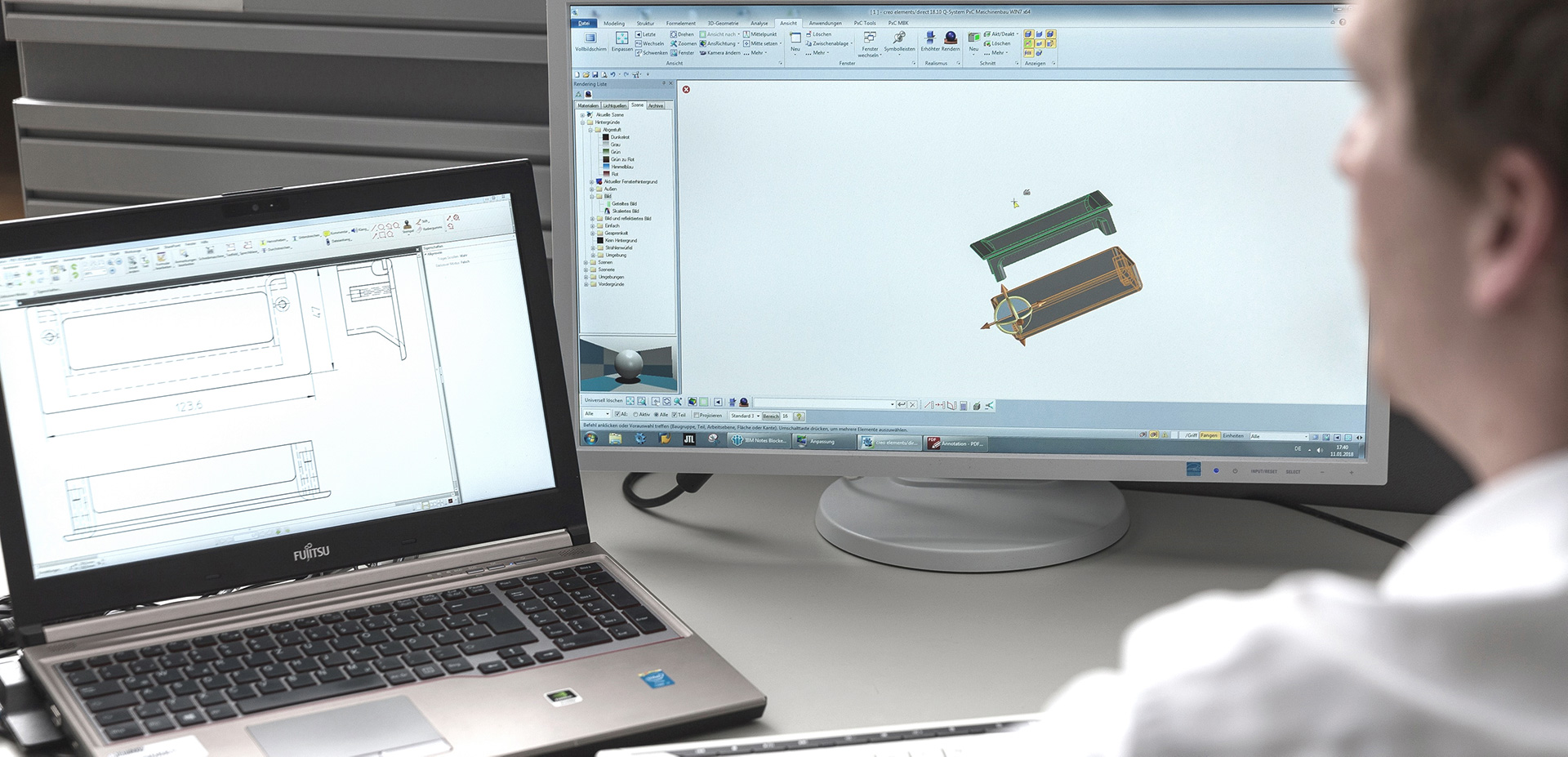
With CAD software, you design your part from scratch – from a simple bracket to an assembly.
To the softwareWay 2
Use a template
Ready-made 3D models exist for many objects – free or for a fee. PROTIQ also offers over 40 free models to download.
To the templatesWay 3
Capture a part by CT
If the CAD data for an existing part is missing, it is captured by CT and converted into a CAD model through reverse engineering.
To reverse engineeringWay 4
Have it designed
Do you have an idea, a sample part or a 2D drawing? Our engineering service takes care of the CAD design.
To the engineering serviceWay 1: Design it yourself
Which software can I use to design 3D printing models?
Free programs such as TinkerCAD or FreeCAD are a good start, and Blender suits organic shapes. In professional environments, CAD systems such as SolidWorks, Inventor, CATIA, Creo or Siemens NX are used.
What matters for 3D printing in the end is not the program, but a clean file in a format the configurator can process. The last column shows how to upload your model from each program.
| Software | Licence | Suitable for | Upload to the PROTIQ Marketplace |
|---|---|---|---|
| TinkerCAD | free, in the browser | Getting started: combining basic shapes into simple parts | Export e.g. as STL or OBJ |
| FreeCAD | free, open source | Parametric design of technical parts | Native (.fcstd) or as STEP |
| Blender | free, open source | Organic shapes, figures and design objects | Export e.g. as STL or OBJ |
| Fusion (Autodesk) | commercial, limited free version for personal use | Design and freeform surfaces | Export e.g. as STEP, STL or 3MF |
| SolidWorks | commercial | Parts and assemblies in mechanical and plant engineering | Native (.sldprt) or as STEP |
| Autodesk Inventor | commercial | Parts and assemblies in mechanical engineering | Native (.ipt, .iam) or as STEP |
| CATIA | commercial | Complex surfaces and large assemblies | Native (.catpart) or as STEP |
| Creo, Siemens NX, Solid Edge | commercial | Professional product development | Export e.g. as STEP; Solid Edge also native (.par) |
Licence information as of October 2026. Manufacturers’ licence models may change.
Learn more: Designing models for 3D printing
↑ Back to overviewDesign for printing
How does a 3D model become printable?
A printable 3D model is a closed solid without holes, with sufficient wall thicknesses for the chosen process and at the correct scale. The exact minimum values depend on process and material.
- Closed surfaceNo holes, open edges or intersecting surfaces – otherwise the volume of the part is not clearly defined.
- Sufficient wall thicknessesHow thin walls, webs and holes can be depends on process and material. You will find the values in the design guidelines.
- Correct scaleSTL files do not contain a unit of measurement. Check that your model was exported in millimetres and that the dimensions are correct.
- Suitable resolutionToo coarse a triangulation during STL export makes curves look faceted; too fine a triangulation creates unnecessarily large files.
- Cavities with openingsIn powder-based processes such as SLS and SLM, powder remains trapped in closed cavities. Openings allow depowdering.
- Clearance between moving partsFor parts that are to come out of the printer movable, the clearances must suit the process.
Design guidelines to download
Learn more: How to create a 3D file
↑ Back to overviewWay 3: Existing part
No CAD data? Capture parts by CT
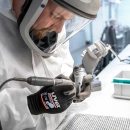
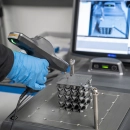
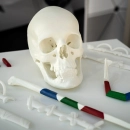
If CAD data no longer exists for an existing part, the part can be captured using computed tomography (CT). Reverse engineering then turns it into a production-ready CAD model – for example to reproduce spare parts.
CT captures the part non-destructively, including its internal structures. With the finished CAD model, you can then have the part manufactured on the PROTIQ Marketplace – in its original design or specifically improved.
↑ Back to overview
Way 2: Use a template
3D printing templates and free 3D models
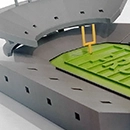
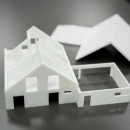
Ready-made 3D models already exist for many standard objects on platforms such as Printables, Thingiverse or GrabCAD. It is important to check the licence first. To try things out, PROTIQ offers over 40 of its own 3D models that you can download free of charge and test in the configurator.
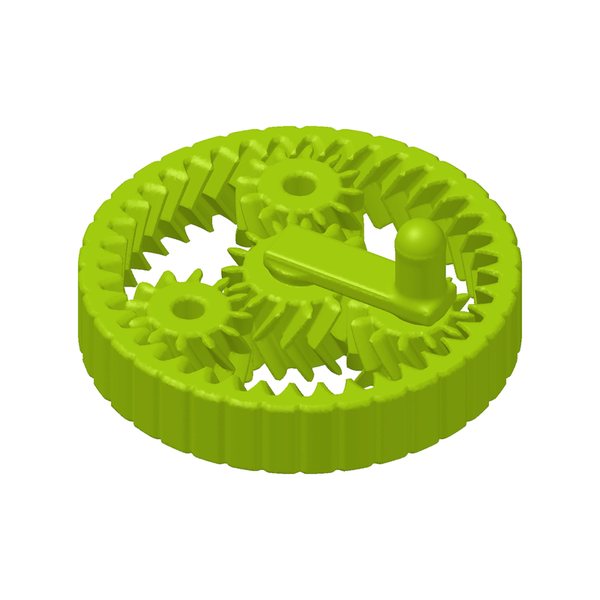
Print-in-place moving parts
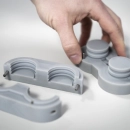
Planetary gear, ball bearing, universal joint – fully assembled straight from the printer.
To the models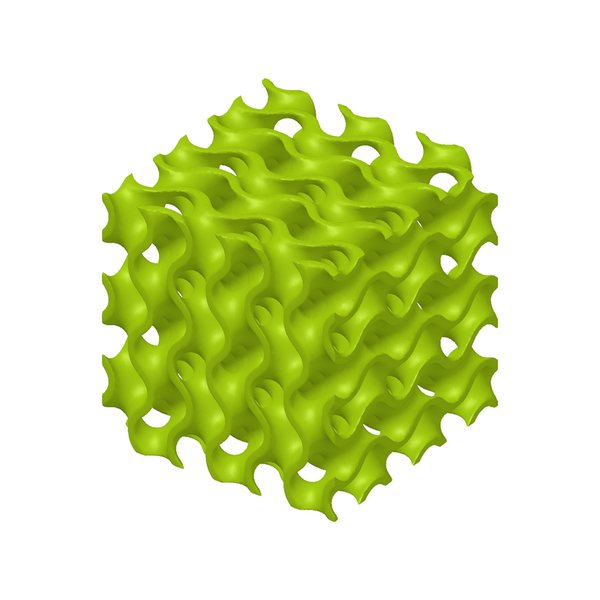
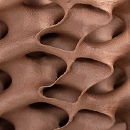
Lightweight design and lattice structures
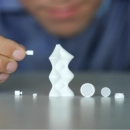
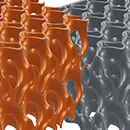
Gyroids, honeycombs and trusses – with solid and lightweight comparison models.
To the models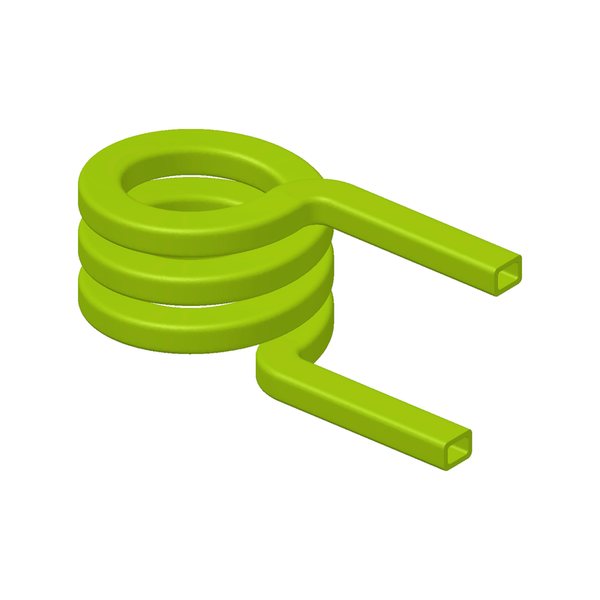
Copper, heat and electrical
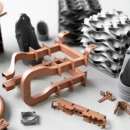
Inductor, heat sink, heat exchanger and ESD parts.
To the modelsWhere to find more templates and what the licences allow: 3D printing templates
↑ Back to overviewFile formats
Which file formats can I upload?
STEP is well suited for exact CAD geometry, and STL and 3MF are common 3D printing formats. The configurator also accepts numerous native CAD formats.
| Group | Formats | Note |
|---|---|---|
| Neutral CAD formats | STEP (.step, .stp), IGES (.igs, .iges), Parasolid (.x_t, .x_b), ACIS (.sat), JT (.jt) | Exact geometry – well suited for exchange between CAD systems |
| 3D printing and mesh formats | STL (.stl), 3MF (.3mf), OBJ (.obj), AMF (.amf), PLY (.ply), VRML (.wrl, .vrml), X3D (.x3d), FBX (.fbx), 3DS (.3ds) | Surface as a triangle mesh – the standard in 3D printing |
| Native CAD formats | SolidWorks (.sldprt), CATIA (.catpart, .cgr, .3dxml), Inventor (.ipt, .iam), Solid Edge (.par), Rhino (.3dm), SketchUp (.skp), FreeCAD (.fcstd), Revit (.rvt), Alias (.wire) | Upload directly from your design software |
| Other | ZIP archives (.zip) and .asm, .mgx, .svx, .xas |
STL only describes the surface of a model as a mesh of triangles – without unit, colour or material. The name derives from stereolithography. 3MF can also store units, colours and several parts in one file. STEP transfers the exact geometry and is suitable if the model is to be edited later.
Learn more: 3D file formats compared
↑ Back to overviewHow do I have my 3D model manufactured?
Upload your model to the configurator, choose material and process, and compare offers from over 40 providers – with over 160 materials and over 12 processes.
- Upload your 3D modelUpload your file to the configurator. It is automatically checked whether the part fits into the build space.
- Choose material and processChoose the material and process to suit the application, quantity and surface.
- Compare offersYou immediately see the providers’ prices and production times and decide for yourself who manufactures.
- OrderComplete your order directly online – or download a PDF quote.

FAQ
Frequently asked questions about 3D printing models
What is a 3D printing model?
A 3D printing model is a digital 3D file that fully describes the geometry of a part. The 3D printer builds the part from this file layer by layer.
Which file format is best for 3D printing?
STEP transfers the exact CAD geometry and is well suited if the model is to be edited later. STL is the most widely used 3D printing format; 3MF also stores units and colours. The PROTIQ Marketplace configurator accepts all three and many other formats.
Which free software is suitable for beginners?
TinkerCAD, which runs directly in the browser, is a good place to start. For parametric design of technical parts there is FreeCAD, and for organic shapes Blender – both free and open source.
What can I do if I don’t have any 3D data?
You can use a ready-made template, have an existing part captured by CT and converted into CAD data through reverse engineering, or have the model designed by the PROTIQ engineering service.
Can I edit an STL file afterwards?
Small changes are possible with mesh editing programs. Since STL consists only of triangles, larger changes are laborious. For these, it is better to work with the original CAD file or a STEP file.
Where can I find free 3D models?
Free 3D models are available on platforms such as Printables, Thingiverse or GrabCAD. Pay attention to the respective licence. In addition, PROTIQ offers over 40 of its own 3D models that you can download and try out free of charge – on the 3D printing templates page.
Does PROTIQ check my 3D file when I upload it?
When you upload, it is automatically checked whether the part fits into the build space. Whether wall thicknesses and details suit the chosen process should be checked using the design guidelines – or contact us.
↑ Back to overview